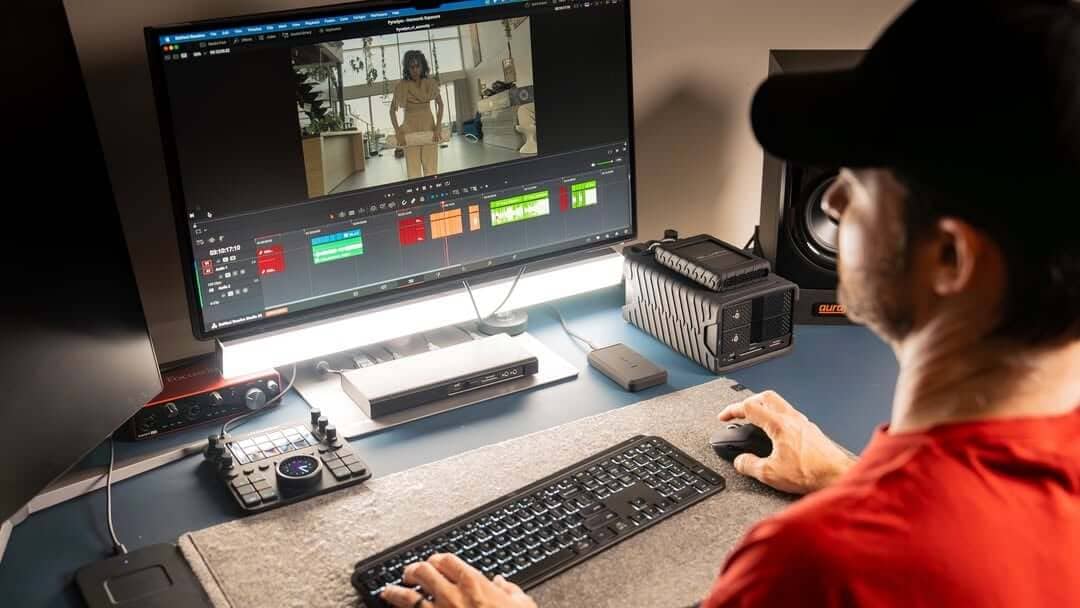
When content creators talk hardware, the spotlight always goes to shiny gear: 4K monitors, mechanical keyboards, studio microphones, and high-end GPUs. Yet the humble desk mouse remains quietly overlooked—often replaced by a generic office pebble or a basic laptop trackpad.
Upgrading to a dedicated "pro" or multi-button gaming mouse—packed with programmable side controls, dual scroll wheels, and macro support—is one of the fastest, highest-ROI upgrades you can make to your post-production workflow.
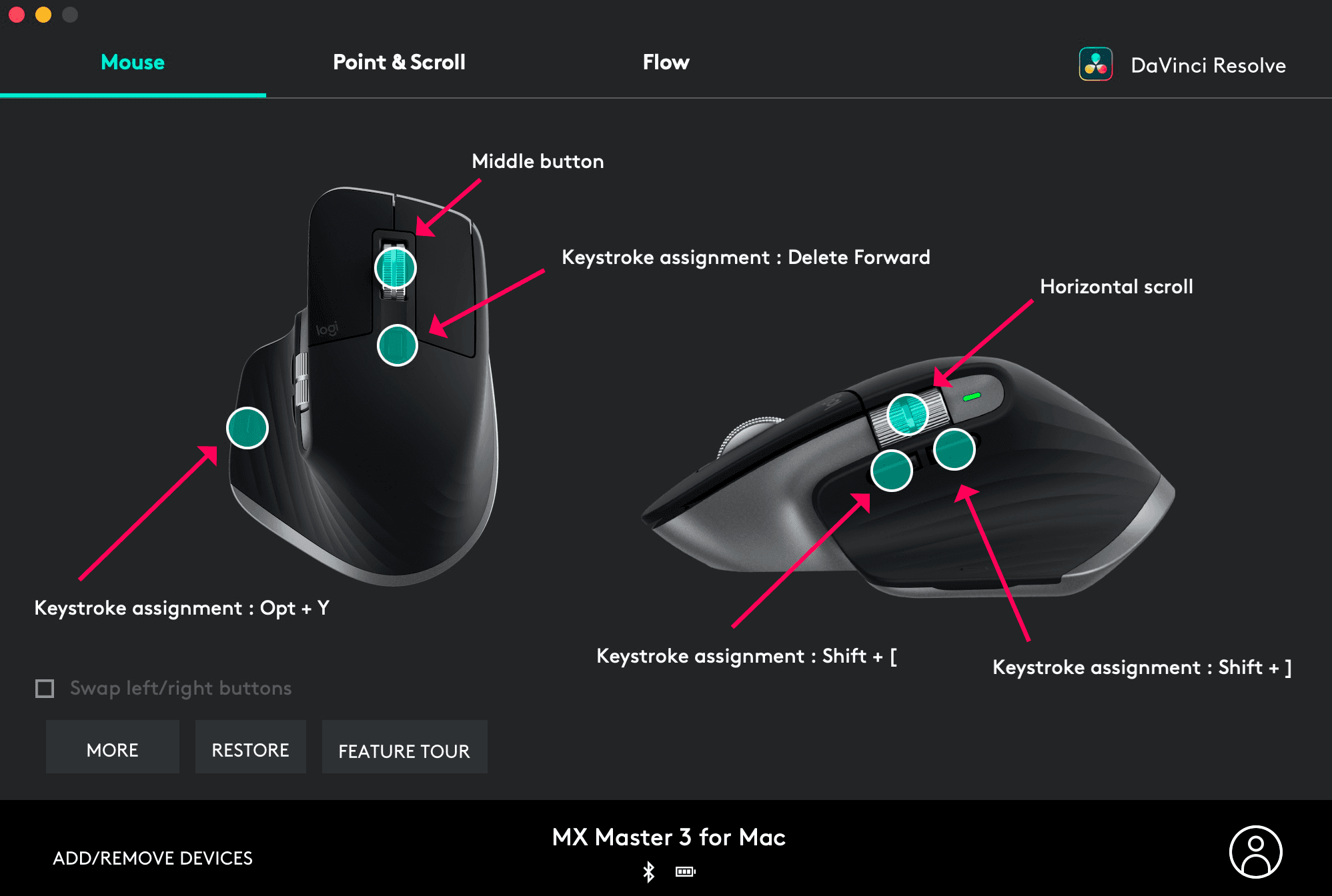 Mapping custom shortcuts directly to thumb controls. Source: Creative Video Tips
1. Dual Wheels: Horizontal Timeline Navigation
The single biggest bottleneck in video editing and music production is timeline navigation.
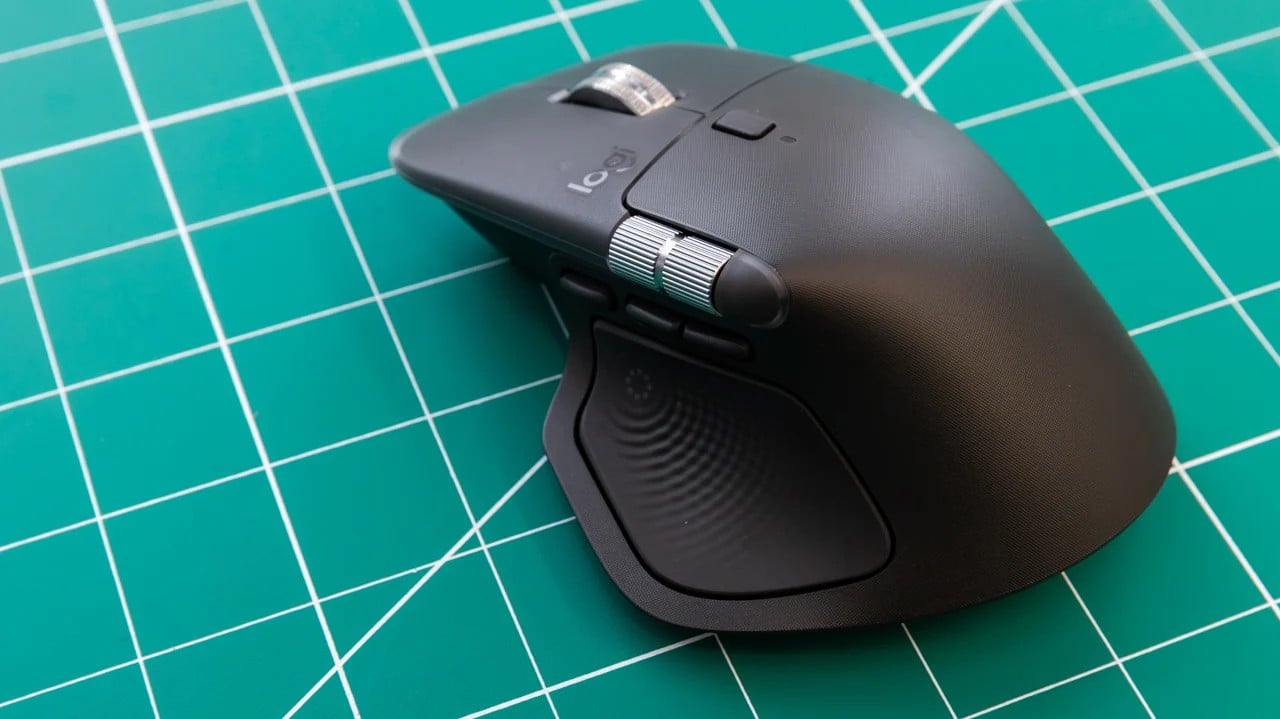
With a standard mouse, scrolling side-to-side requires holding Shift, hunting for microscopic scroll bars at the bottom of the screen, or dragging a playhead manually. A mouse equipped with a dedicated thumb wheel or tilt-click scroll wheel changes the game:
- Video Editors: Use the thumb wheel to fluidly glide left and right across a multi-track 4K project timeline without touching your keyboard.
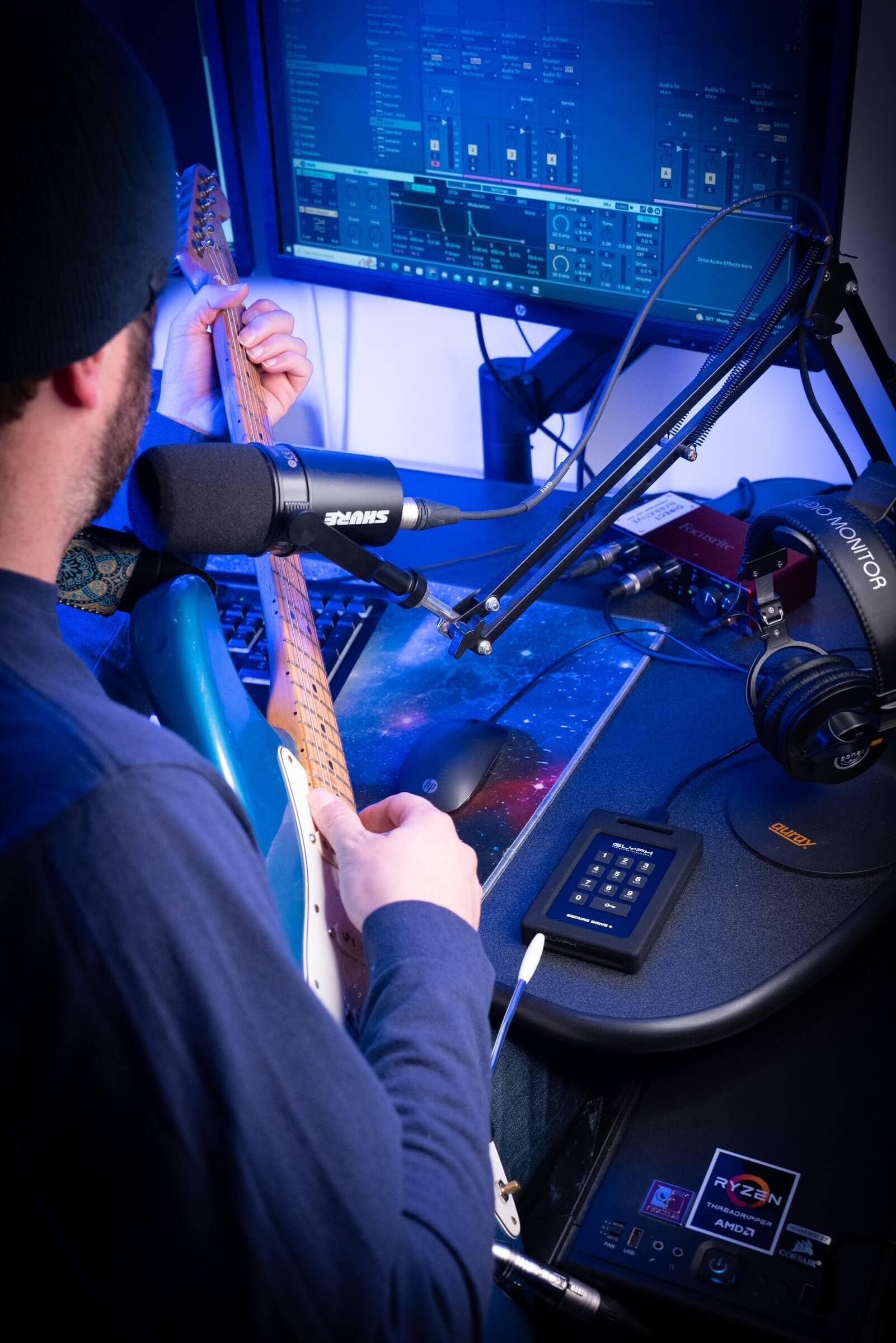
- Audio Producers: Assign the main scroll wheel to zoom in on wave peaks and the secondary wheel to scrub through track arrangements instantly in Ableton Live, Logic Pro, or Pro Tools.
2. Instant Cuts & Ripple Deletes via Thumb Buttons
Most video editing consists of repetitive trim operations: splitting a clip, selecting the unwanted segment, hitting delete, and closing the gap. Doing this hundreds of times a day via keyboard shortcuts induces real muscle fatigue.
By assigning macro keybindings to extra side buttons, you can perform core functions without moving your hand off your mouse:
- Button 1:
Add Edit/Razor Blade(Cut at playhead) - Button 2:
Ripple Delete(Removes clip and closes gap instantly) - Button 3:
Select Forward(Grabs everything downstream)
Mapping these three actions to your thumb cuts cutting time significantly, keeping your focus on creative pacing rather than keystrokes.
3. Application-Specific Profiles for NLEs & DAWs
Modern companion software (like Logi Options+, Razer Synapse, or Corsair iCUE) automatically switches your button mappings based on which application is active on your screen. Here is how multi-button mice transform top creator software:
🎬 Adobe Premiere Pro
- Main Thumb Wheel: Horizontal Timeline Scroll
- Side Button 1:
Add Edit(Cmd/Ctrl + K) — Splits clips at the playhead without switching to the Razor tool. - Side Button 2:
Ripple Delete(Option + Delete/Shift + Delete) — Removes the selected clip and automatically closes the gap. - Thumb Click / DPI Button:
Track Select Forward Tool(A) — Selects all media downstream for easy timeline shifting.
✂️ Final Cut Pro (FCP)
- Main Thumb Wheel: Timeline Scrubbing / Zooming
- Side Button 1:
Blade Tool(Cmd + B) — Makes an instant cut at the playhead position. - Side Button 2:
Trim Tool(T) — Toggles the Trim tool for slipping and sliding edits without reaching for the keyboard. - Extra Button:
Select Tool(A) — Drops back to the default pointer to avoid accidental secondary cuts.
🎥 DaVinci Resolve
- Main Thumb Wheel: Timeline Scroll
- Side Button 1:
Ripple Cut(Cmd/Ctrl + Shift + X) - Side Button 2:
Append to End(Shift + F12) — Lightning-fast rough assembly on the Cut page.
🎧 Ableton Live / Logic Pro / Pro Tools
- Side Button 1:
Split Clip at Cursor(Cmd/Ctrl + E) - Side Button 2:
Duplicate Selection(Cmd/Ctrl + D) - Thumb Wheel: Track Panning / Dynamic Horizontal Zoom
4. Precision Control & Ergonomics
Editing audio waveforms or drawing bezier masks around complex video subjects requires micro-precision tracking. High-grade optical sensors found in pro and gaming mice offer adjustable DPI (Dots Per Inch) settings on the fly. You can drop to an ultra-low DPI mode for frame-accurate masking work, then switch back to high DPI for sweeping across dual 4K monitors.
Ergonomically, professional mice feature sculpted contours and thumb rests built for marathon editing sessions. Eliminating repetitive wrist twists and constant keyboard reaching keeps strain away during late-night render crunch periods.
Choosing the Right Mouse for Your Workflow
| Mouse | Best For | Key Creator Feature |
| Logitech MX Master 3S | The Best Overall Productivity Mouse | Dedicated thumb wheel, silent clicks, electromagnetic main wheel, and native app profile switching. |
| Razer Naga V2 Pro / Trinity | The Macro Powerhouse | Swappable side plates offering up to 12 side buttons—ideal for editors who want every shortcut mapped to one hand. |
| Logitech G502 X | The Hybrid (Editing + Gaming) | 11 programmable controls, ultra-fast optical sensor, dual-mode scroll wheel, and lightweight build. |
| Logitech MX Ergo | Ergonomics & Desk Space Saver | Trackball design that keeps your wrist stationary—great for tight desk setups and preventing wrist fatigue. |