The tectonic plates of the gaming industry just shifted. With Sony’s official announcement that they will discontinue physical disc production for new PlayStation games starting in January 2028, and the swirling rumors that Microsoft’s next-gen console (codenamed Project Helix) may completely ditch the optical drive, the all-digital era is no longer a distant possibility. It’s our reality.
For gamers, this transition brings a massive logistical headache: storage space.
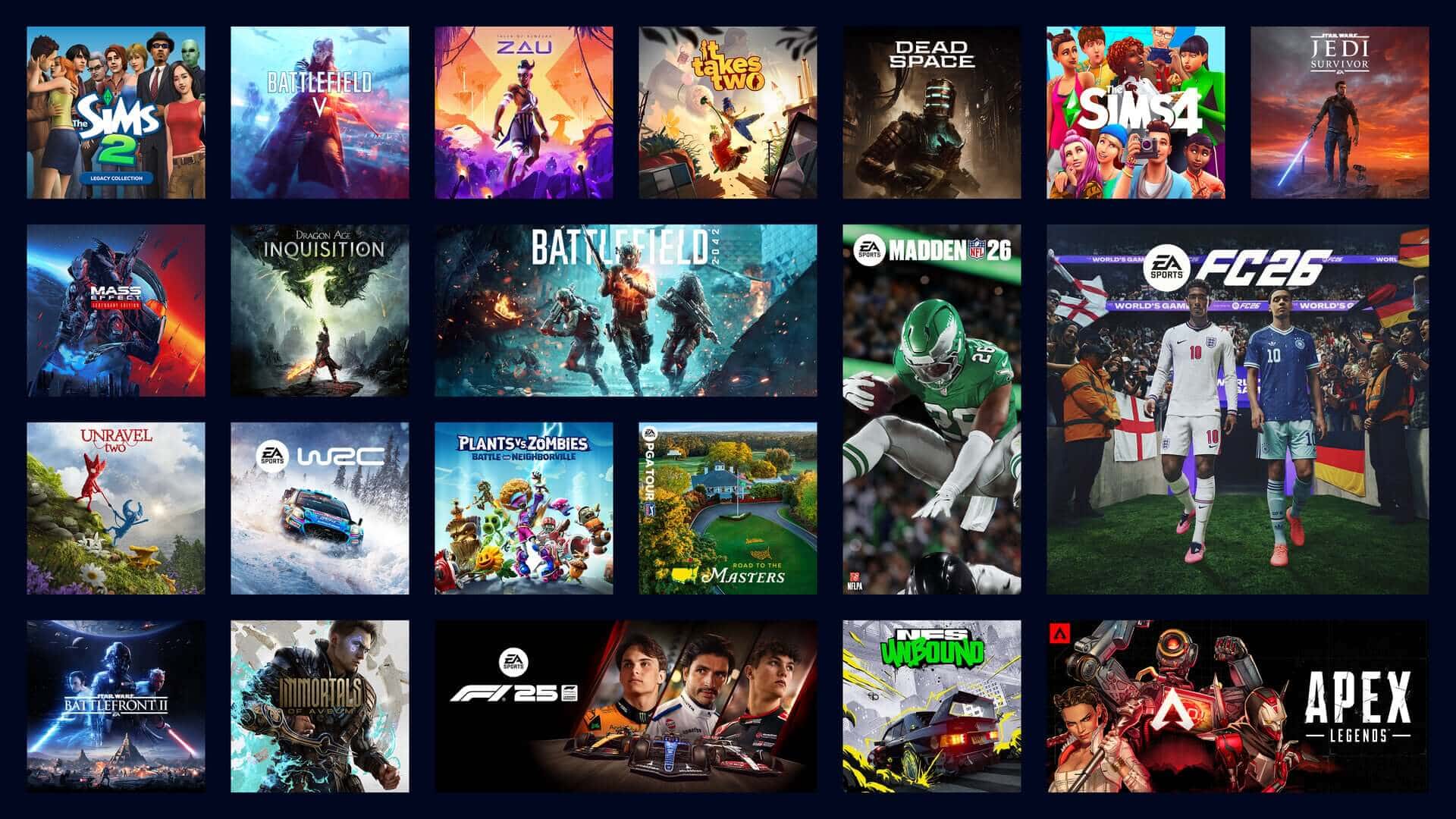
Modern AAA titles regularly clock in at 100GB to 150GB+. Without a physical disc to offload the initial installation assets, your console’s internal drive will become a bottleneck faster than ever. If you play on PC, your Steam library faces the exact same data crunch.
To survive the digital-only landscape, external storage is no longer optional—it is essential. Here is how to use external drives with current-generation hardware and how to pick the right tech for your setup.
The Reality of External Storage on Current Gen Consoles
Before buying a drive, you need to know the golden rule of current-generation console storage (PS5 and Xbox Series X|S): You cannot play current-gen games directly from a standard external USB drive.
Because current-gen games are built to leverage ultra-fast, proprietary internal NVMe SSD architectures, standard external USB drives simply aren't fast enough to handle active gameplay. However, they serve a vital purpose as "cold storage."
What you can do: You can store your PS5 and Xbox Series X|S games on an external drive to free up internal space, and then quickly copy them back to the internal drive when you're ready to play. This takes minutes, compared to the hours it might take to redownload a 100GB game over Wi-Fi.
The exception for older games: You can play backward-compatible PS4 and Xbox One/360 games directly from an external USB drive without any issues.
Hard Drives (HDDs) vs. Solid State Drives (SSDs): Pros and Cons
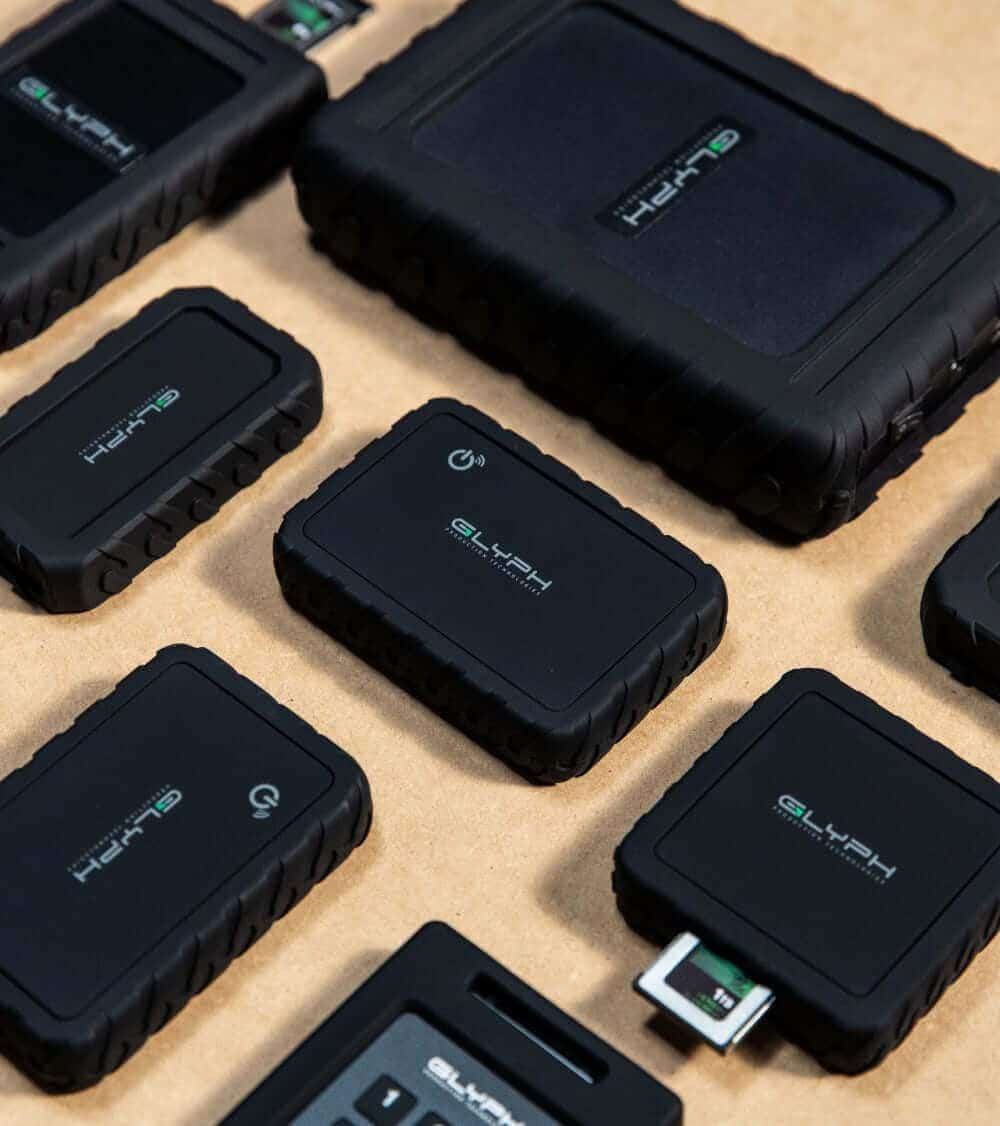
When expanding your setup, you have two primary choices for external USB storage. Weighing the pros and cons of each will help you choose the right fit for your budget and habits.
1. External Mechanical Hard Drives (HDDs)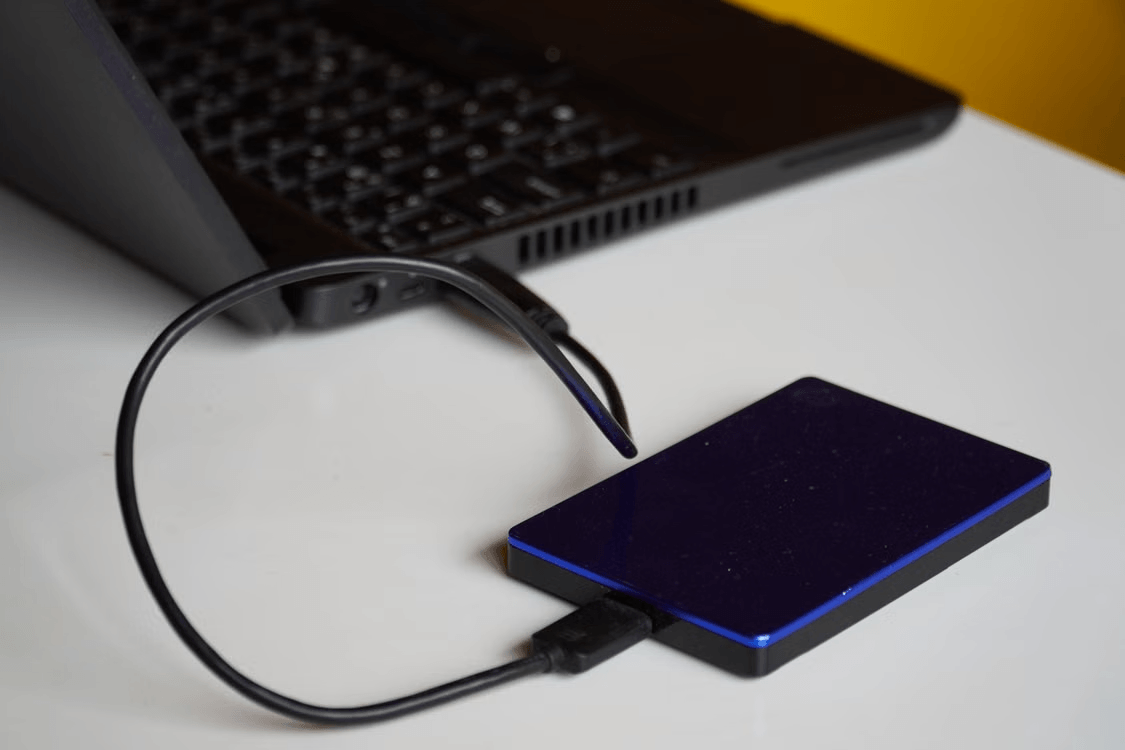
The traditional spinning platter drive.
PRO: Unmatched Capacity per Dollar. If you have a massive library and want 4TB to 8TB of space without breaking the bank, HDDs are incredibly cost-effective.
PRO: Perfect for Archive Hoarding. If you just want a massive "vault" to hold dozens of games in cold storage so you never have to redownload them, a high-capacity HDD is a great tool.
CON: Brutally Slow Transfer Speeds. Moving a 100GB game from an HDD back to your console’s internal storage can take 15 to 25 minutes.
CON: Durability. Because they contain moving parts, they are susceptible to physical damage if dropped or bumped while operating.
2. External Solid State Drives (SSDs)
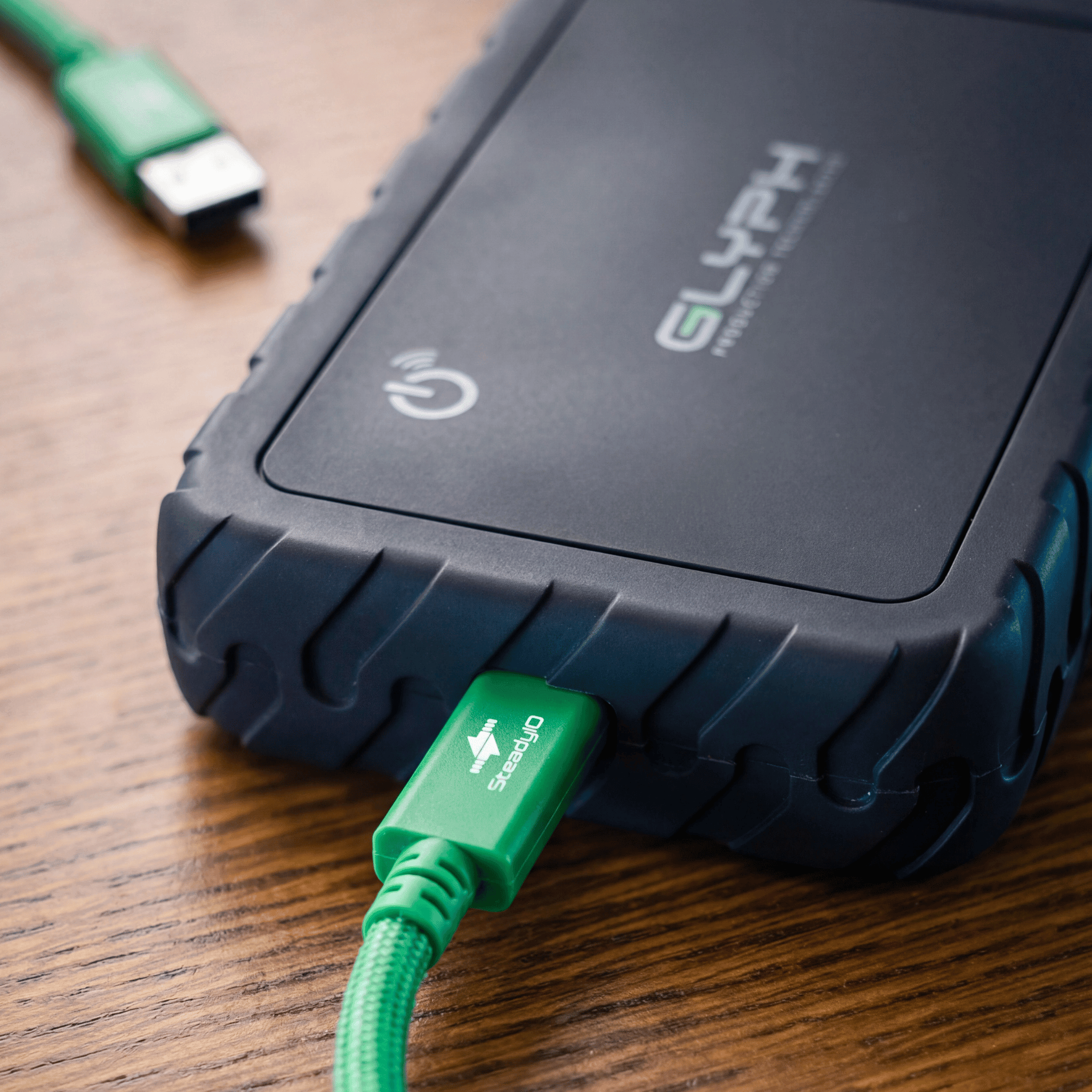
Flash-memory-based storage built for speed.
PRO: Blazing Fast Transfers. An external USB SSD can copy that same 100GB game back to your internal drive in just 2 to 4 minutes.
PRO: Playable Back-Compat Games. If you run PS4 or Xbox One games directly from an external SSD, your loading times will be drastically shorter than running them from an HDD.
PRO: Rugged and Portable. No moving parts means they can handle being tossed into a backpack or knocked off a desk.
CON: Higher Cost. You will pay significantly more per gigabyte compared to an HDD, generally capping practical external sizes to 1TB, 2TB, or 4TB for mainstream budgets.
Don't Forget Your Steam Library
It isn't just console players feeling the storage squeeze; PC gamers managing massive Steam libraries face the exact same problem. Fortunately, Valve makes using external storage incredibly seamless.
Unlike consoles, Steam allows you to play your PC games directly from an external drive.
How to set up an external Steam Library: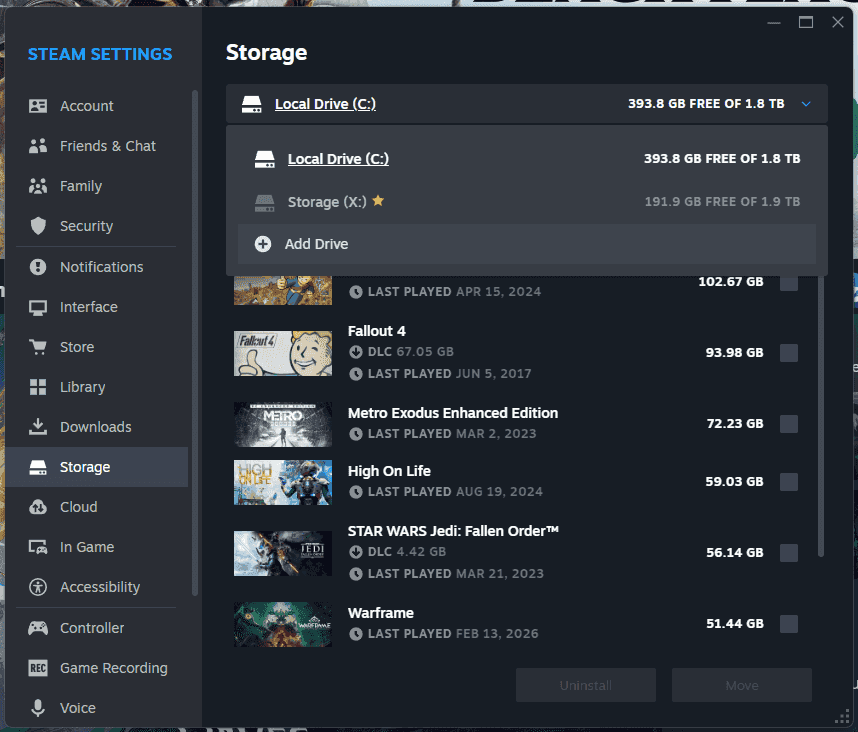
Plug your external SSD or HDD into your PC (ideally using a fast USB 3.2 port or better).
Open Steam and navigate to Settings > Storage.
Click the drive dropdown at the top, select Add Drive, and choose your external drive.
⚠️ A Quick Warning for PC players: While Steam allows you to run games from an external HDD, modern PC titles are increasingly listing an SSD as a minimum requirement. Running heavy modern games from an external HDD will result in severe texture popping, stuttering, and agonizingly long loading screens. For an active external Steam library, an external SSD is highly recommended.
Making the Move to All-Digital
The death of the optical drive might feel restrictive, but it doesn't mean you have to constantly delete and re-download your favorite games. By matching your habits with the right external storage—whether it’s a massive HDD vault for cold-storing console titles, or a high-speed external SSD to keep your active Steam library running smoothly—you can take complete control of your digital library.
Invest in your storage strategy now, and you won’t look back when the disc drives vanish for good.